Setting Up Git Over SSH with Forgejo in a Homelab

Setting up Git to work over SSH gave me a bit of a headache. I wanted to host my own private Git service in my homelab, so I chose Forgejo. The installation itself was easy, but getting SSH to work properly required a bit more digging.
My Homelab Environment
- Ubuntu LXC on Proxmox
- Forgejo installed in the Linux container
- Pi-hole for DNS
- Nginx Proxy Manager for reverse proxy
Generating a New SSH Key Pair for Forgejo
First, I recommend creating a new pair of SSH keys dedicated to Forgejo. On macOS, you can generate them like this:
ssh-keygen -t ed25519 -a 100 -C "forgejo user email"
pbcopy < ~/.ssh/forgejo.pub // on macOS — or just copy the file content manually
Once you have the .pub file, go to Forgejo → Settings → SSH Keys, click Add, and paste the key.
Why SSH Was Still Asking for a Password
At this point, when I tried testing the connection with:
ssh -T [email protected]

SSH still asked me for a password.
I initially tried modifying my ~/.ssh/config by adding a new Host section with all the required options, hoping it would help SSH pick the correct identity. Unfortunately, no luck.
After some research, I discovered the real issue: when connecting over the domain name while using Nginx Proxy Manager, SSH was trying to connect to the NPM host instead of my Forgejo container.
The Solution: Bypassing the Proxy for SSH Access
I found a blog post by William Killerud where he described bypassing Cloudflare for SSH. Turns out, using a similar approach solved my problem as well.
In the end my .ssh/config file looks like this:
Host git.filut.ovh
  HostName 192.168.0.86
  User git
  IdentityFile ~/.ssh/forgejo
  AddKeysToAgent yes
  UseKeychain yes
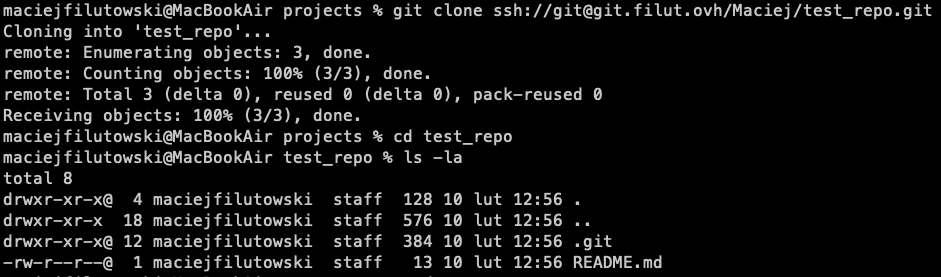
And here's the proof that everything is finally working 🎉
Until next time!